
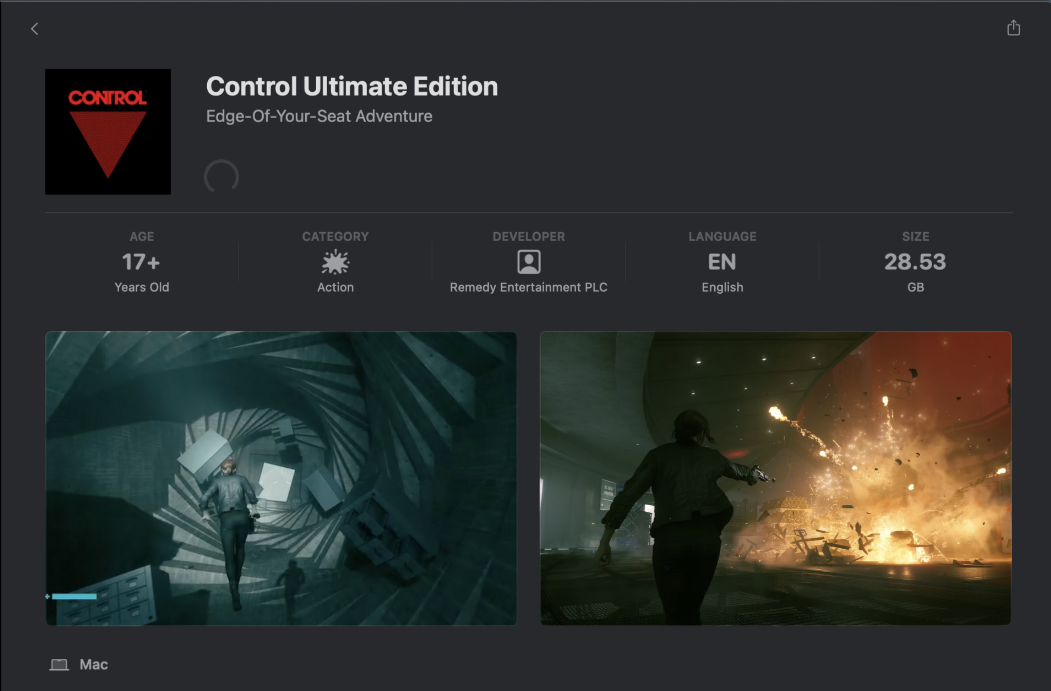
Unlike PC storefronts, the Mac App Store doesn’t include a built‑in “verify integrity” feature for game files. If CONTROL Ultimate Edition is crashing, not launching, or missing files, the best way to repair it is to delete the app and download a fresh copy. This guide walks you through backing up your data, removing the existing installation, and reinstalling the latest version from the App Store.
Troubleshooting Steps
Back up your save data – To keep your progress, copy the game’s save files to a safe location before deleting the app. See our macOS save‑data guide for instructions.
Quit CONTROL Ultimate Edition– Ensure the game isn’t running. Close it from the menu bar or press ⌘ + Q.
Delete the existing installation – Remove CONTROL Ultimate Edition using Launchpad or Finder:
Launchpad: Click the Apps (Launchpad) icon in the Dock. Find CONTROL Ultimate Edition, click and hold the icon until it wiggles, then click the X to delete.
Finder: Open Finder, select Applications, control‑click the CONTROL Ultimate Edition app, and choose Move to Trash, then empty the Trash. This removes the application and its bundled files.
Reinstall from the App Store – Open the App Store app. Click your name in the bottom left corner (or sign in) and locate CONTROL Ultimate Edition in your purchased apps list. Click the Download button to install a fresh copy.
Restore your save data – After installation completes, copy your backed‑up save files back into the game’s save‑data directory (see our save‑data guide). Launch the game to verify your progress and ensure the repair was successful.
Important Notes
No built‑in verification: macOS doesn’t provide a file‑integrity check for App Store apps. Re‑downloading the game is the only way to ensure all files are up to date.
Internet connection required: Reinstalling requires a stable internet connection and enough disk space. Download size may be several gigabytes.
Back up first: Uninstalling removes the application bundle but not necessarily your save files; however, it’s still safest to back up your saves before deleting the game.
Additional Tips
Check for macOS updates: Sometimes crashes are caused by outdated system libraries. Use Apple menu > System Settings > General > Software Update to ensure macOS is up to date.
Free up space: If the game won’t reinstall, verify you have enough free space. Use Apple menu > System Settings > General > Storage to check disk usage.
Keep a clean launch: After reinstalling, avoid restoring any mods or third‑party files that could cause instability.
Contact Player Support
If you have questions or continue to encounter problems, and the issue persists, you can contact our support team for technical assistance.
- Open the Remedy Help Center. Go to remedy.helpshift.com and click the chat bubble in the lower‑right corner to start a ticket.
- Describe your issue. Select Bug Reports, Game Froze/Crash, or the most relevant option, and answer the bot’s questions. Be sure to include your email address, platform (Steam, PlayStation, Xbox, Switch, etc.), User ID, screenshot/video, and a clear description of what went wrong.
- Provide additional details. Player Support may ask you for additional files or info that may help with your issue, such as Error Code/Message, DxDiag, or MSInfo.
For comprehensive bug‑reporting instructions, refer to How to Report Bugs & Crashes - CONTROL Ultimate Edition in our Remedy Technical Support and Help Center.