
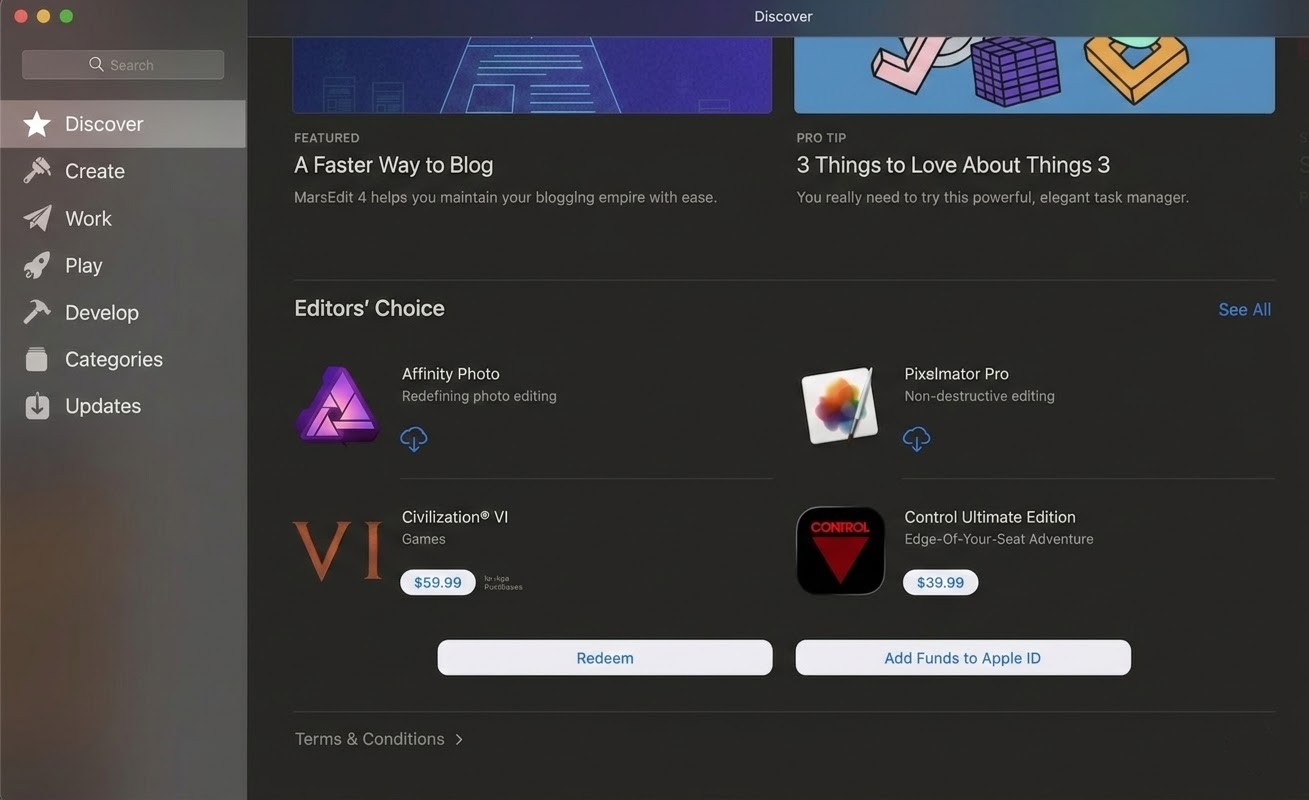
Sometimes publishers provide download codes or promotional codes for additional content. On macOS, all code redemption is handled through the App Store. This guide walks you through redeeming a gift card or download code to unlock content for CONTROL Ultimate Edition. You’ll need to be signed in with the Apple ID that owns the game.
Troubleshooting Steps
Redeem a Code Manually
Open the App Store on your Mac.
Click your name in the bottom‑left corner of the window (or click Sign In if you aren’t signed in).
Click “Redeem Gift Card” in the top‑right corner.
Enter your code. Type the download code or the code from your gift card and press Redeem.
Once redeemed, the content associated with the code will begin downloading. If the code applies to a purchase, you may need to re‑download CONTROL Ultimate Edition or its DLC from your Purchased list.
Redeem Using Your Mac’s Camera (Gift Cards Only)
If you have a physical gift card with a box around the code, you can use your Mac’s built‑in camera:
Open the App Store and click your name or Sign In.
Click Redeem Gift Card in the top‑right corner.
Click Use Camera.
Hold the gift card about 4–7 inches (10–18 cm) from the camera so the code is inside the preview area. Hold it steady until macOS scans and redeems the code.
Important Notes
Codes must be valid for the Apple ID in use. A code purchased in another region may not be redeemed if your Apple ID is registered to a different country.
One‑time use: Most download or promotional codes can be redeemed only once. Double‑check the characters when typing them in.
No in‑game code entry: CONTROL Ultimate Edition on macOS uses the App Store for all code redemptions. There is no in‑game field for entering a code.
DLC availability: After redeeming a code, restart CONTROL Ultimate Edition and check the main menu or your Purchased list to confirm that any add‑on content appears.
Additional Tips
Check your connection: A stable internet connection is required to validate and download content.
Verify purchase history: If a code doesn’t work, review your purchase history under your Apple ID to confirm whether it was already redeemed.
Contact the issuer: For game card issues (invalid or scratched codes), contact the retailer or visit Apple Support for assistance.
Contact Player Support
If you have questions or continue to encounter problems, and the issue persists, you can contact our support team for technical assistance.
- Open the Remedy Help Center. Go to remedy.helpshift.com and click the chat bubble in the lower‑right corner to start a ticket.
- Describe your issue. Select Bug Reports, Game Froze/Crash, or the most relevant option, and answer the bot’s questions. Be sure to include your email address, platform (Steam, PlayStation, Xbox, Switch, etc.), User ID, screenshot/video, and a clear description of what went wrong.
- Provide additional details. Player Support may ask you for additional files or info that may help with your issue, such as Error Code/Message, DxDiag, or MSInfo.
For comprehensive bug‑reporting instructions, refer to How to Report Bugs & Crashes - CONTROL Ultimate Edition in our Remedy Technical Support and Help Center.