
Keeping Control Ultimate Edition up‑to‑date ensures you have the latest patches, performance improvements, and content. Updates on macOS are delivered through the App Store. This guide shows you how to manually check for updates, install them, and enable automatic updates.
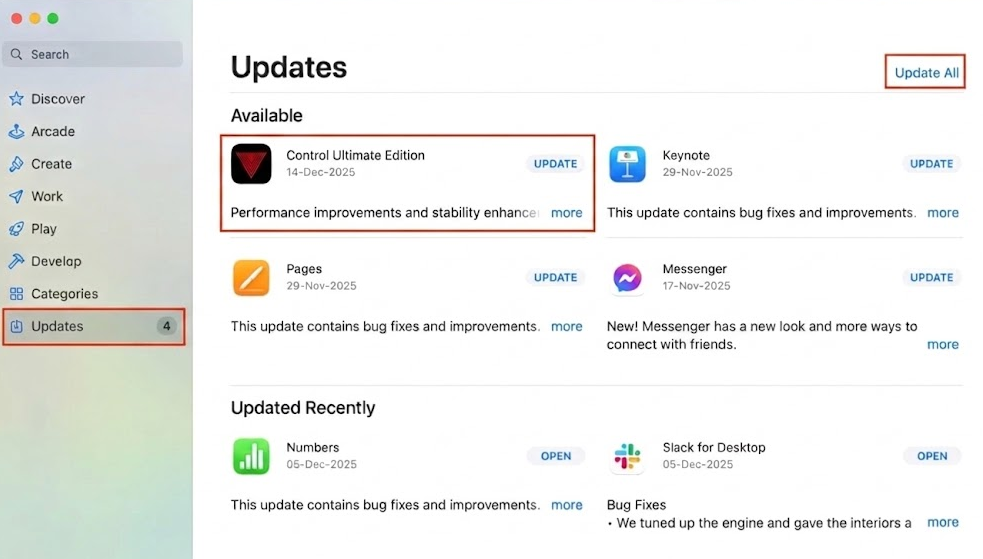
Method 1: Manual Update
Open the App Store on your Mac.
In the sidebar, click the Updates tab.
If an update for CONTROL Ultimate Edition is available, it will appear in the list. Click the Update button next to it.
If the update doesn't appear, press Command + R while on the Updates page to refresh and force the store to check for new versions.
Method 2: Enable Automatic Updates
To ensure you never miss a patch, you can allow macOS to handle updates in the background:
Open the App Store.
From the menu bar at the top of the screen, choose App Store > Settings (or Preferences).
Check the box for Automatic Updates.
Note: Updates may not download if your Mac is in Low Power Mode or not connected to a power source.
Important Notes
Version Check: To see which version you are currently running, open your Applications folder, click once on the CONTROL Ultimate Edition icon, and press Command + I to open the Info window.
- System Updates: Sometimes a game update requires a newer version of macOS (e.g., macOS 15 Sequoia or macOS 16 Tahoe). Check System Settings > General > Software Update to ensure your OS is current.
Contact Player Support
If you have questions or continue to encounter problems, and the issue persists, you can contact our support team for technical assistance.
- Open the Remedy Help Center. Go to remedy.helpshift.com and click the chat bubble in the lower‑right corner to start a ticket.
- Describe your issue. Select Bug Reports, Game Froze/Crash, or the most relevant option, and answer the bot’s questions. Be sure to include your email address, platform (Steam, PlayStation, Xbox, Switch, etc.), User ID, screenshot/video, and a clear description of what went wrong.
- Provide additional details. Player Support may ask you for additional files or info that may help with your issue, such as Error Code/Message, DxDiag, or MSInfo.
For comprehensive bug‑reporting instructions, refer to How to Report Bugs & Crashes - CONTROL Ultimate Edition in our Remedy Technical Support and Help Center.