
If CONTROL Ultimate Edition on macOS is behaving erratically (for example, stuttering, crashing or failing to load), clearing the game’s cache may help. Cached data are temporary files that help apps start faster, but corrupt caches can sometimes cause problems.
This guide explains how to safely remove CONTROL Ultimate Edition’s cached files on macOS. Before you begin, back up your saved game data (see the “Back Up and Restore Save Data” guide) so that you don’t lose progress.
Troubleshooting Steps
Quit CONTROL Ultimate Edition. Make sure the game isn’t running in the background.
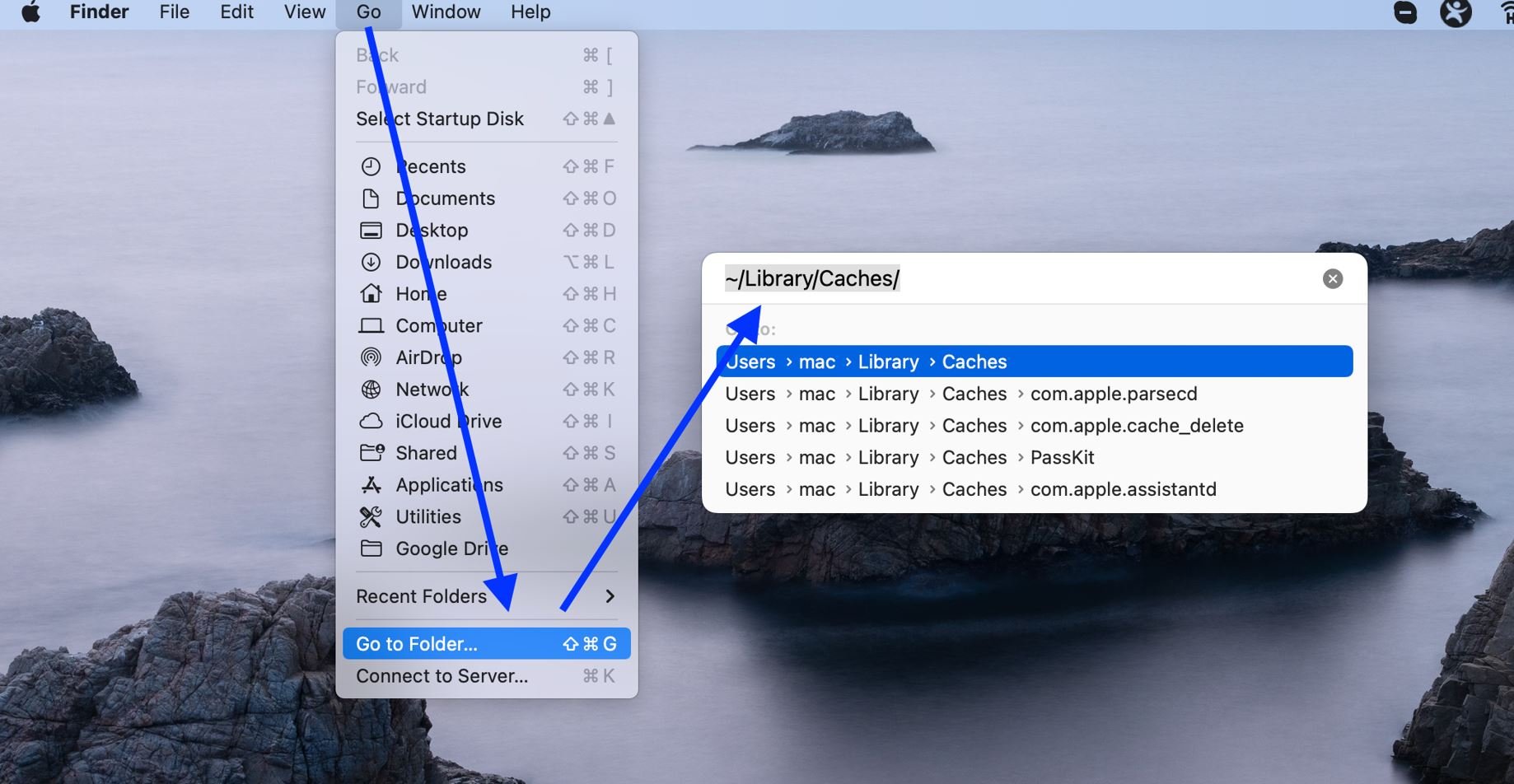
Open Finder and click Go in the menu bar, then select Go to Folder…. A small dialog appears where you can type a path.
Locate application caches:
To see the general cache folder for all applications, type
~/Library/Cachesand click Go. This folder contains sub‑folders for each app. According to Avast’s Mac cleanup guide, every app stores its own cached files in the~/Library/Cachesfolder.For Mac App Store apps, additional data (including caches and preferences) live in the sandbox container at
~/Library/Containers/<bundle ID>/Data/Library/. Ask Different notes that sandboxed apps keep all their data inside the Containers sub‑folder and there may be cache files inside theCachessub‑folder. You can open~/Library/Containersand search for a folder whose name includes “Control” to find Control’s container.
Open the app’s cache folder. Within
~/Library/Cachesor the container path above, open the folder that corresponds to CONTROL Ultimate Edition (it may include the developer name). You may need to use Finder’s search to locate it.Move the cache files to the Trash. Select the contents of the
Cachesfolder and drag them to the Trash. Do not delete other folders such asPreferencesorApplication Support, as these contain your saves and settings.Restart your Mac. Restarting helps macOS rebuild necessary caches and often resolves temporary issues. Avast explains that a restart can clear many temporary caches automatically.
Launch CONTROL Ultimate Edition again to see if performance improves.
Important Notes
Back up your saves first. Clearing caches shouldn’t delete saved games, but it’s best practice to back up your save data before making changes.
Be selective. Only delete files in the
Cachesfolder. Removing files from other locations (likePreferencesorApplication Support) can reset settings or erase progress.macOS will rebuild caches automatically. After you remove caches, macOS recreates them as the app runs. Performance may be slower on the first launch, but should stabilize afterwards.
If you’re unsure, contact support. Deleting the wrong files can cause the game to malfunction. If you’re not comfortable, contact Player Support instead of deleting anything.
Additional Tips
Use Storage Management: macOS includes Storage Management in System Settings. It helps you find and review categories like System Data and Applications, where caches may accumulate.
Check for updates: Sometimes, performance issues are fixed in updates. See the update guide to ensure you’re running the latest version of CONTROL Ultimate Edition.
Contact Player Support
If you have questions or continue to encounter problems, and the issue persists, you can contact our support team for technical assistance.
- Open the Remedy Help Center. Go to remedy.helpshift.com and click the chat bubble in the lower‑right corner to start a ticket.
- Describe your issue. Select Bug Reports, Game Froze/Crash, or the most relevant option, and answer the bot’s questions. Be sure to include your email address, platform (Steam, PlayStation, Xbox, Switch, etc.), User ID, screenshot/video, and a clear description of what went wrong.
- Provide additional details. Player Support may ask you for additional files or info that may help with your issue, such as Error Code/Message, DxDiag, or MSInfo.
For comprehensive bug‑reporting instructions, refer to How to Report Bugs & Crashes - CONTROL Ultimate Edition in our Remedy Technical Support and Help Center.