
If you’re encountering issues installing CONTROL Ultimate Edition on PC, this guide will help you perform a clean installation and ensure that all system components are properly configured.
Each step builds on the previous one, if the issue persists after completing one, proceed to the next.
Step 1. Verify the Integrity of Game Files
Verifying game files checks for corrupted, missing, or incomplete files and automatically replaces them with clean copies. This often resolves installation errors, launch failures, and crashes without requiring a full reinstall.
For Steam Users
Open Steam and go to your Library
Right-click CONTROL Ultimate Edition
Select Properties
Open the Installed Files tab
Click Verify integrity of game files
Wait for the process to complete, then restart Steam
For Epic Games Store Users
Open Epic Games and go to your Library
Find CONTROL Ultimate Edition
Click the three dots (⋯) next to the game
Select Manage
Click Verify
Wait for the process to complete, then restart Epic Games
For GoG Galaxy Users
Open GOG Galaxy and go to your Library
Select CONTROL Ultimate Edition
Click the Settings icon next to the Play button
Choose Manage Installation
Select Verify / Repair
Wait for the process to complete, then restart GOG Galaxy
Step 2: Uninstall CONTROL Ultimate Edition
Removing corrupted or incomplete files allows for a clean reinstall that often resolves installation errors or launch failures.
For Steam Users
Open the Steam client.
Navigate to Library.
Right-click CONTROL Ultimate Edition → Manage → Uninstall.
For Epic Games Store Users
Open the Epic Games Launcher.
Go to your Library.
Click the three dots (⋯) next to CONTROL Ultimate Edition → Uninstall.
For GOG Galaxy Users
Launch GOG Galaxy.
Go to your Library.
Select CONTROL Ultimate Edition → click the More (⋯) menu.
Choose Manage Installation → Uninstall.
Alternative (Windows Settings)
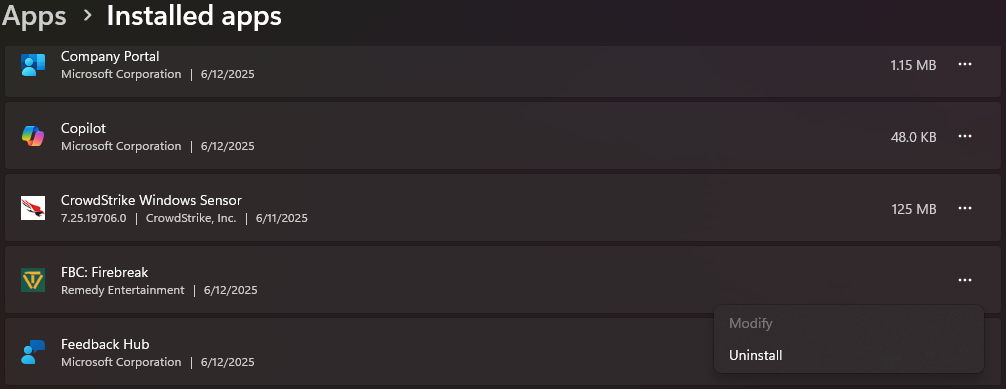
Press Start → Settings → Apps → Installed Apps.
Find CONTROL Ultimate Edition and click Uninstall.
Step 3: Update DirectX
CONTROL Ultimate Edition relies on the latest DirectX libraries for rendering and performance stability.
To update:
Press Windows + I → Windows Update → Check for updates.
Install all available system updates.
Optionally, download the latest DirectX runtime manually from Microsoft:
DirectX End-User Runtime Web Installer
Step 4: Update Graphics Drivers
Outdated or damaged GPU drivers often cause installation and launch issues.
Select your GPU type below. Keeping your graphics drivers up to date is crucial:
NVIDIA Users: Visit the Official GeForce Drivers page to download the latest drivers.
AMD Users: Go to the AMD Drivers and Support page for the latest updates.
Intel Users: Access the Intel Driver & Support Assistant to automatically detect and install updates.
Updated drivers ensure optimal performance and compatibility with the latest games, preventing crashes and graphical glitches. After installation, restart your PC to finalize changes.
Step 5: Install Microsoft Visual C++ Redistributables
Many PC games, including CONTROL Ultimate Edition, depend on Visual C++ components.
Install the latest supported Visual C++ Redistributable packages for Visual Studio:
Download from the Microsoft Visual C++ Redistributable latest supported downloads page.
Ensure you install both x86 and x64 versions.
- Restart your computer when complete.
Many applications, including games, rely on these redistributables to function correctly. Missing or outdated versions can lead to runtime errors.
Step 6: Install the Latest .NET Framework
CONTROL Ultimate Edition requires an up-to-date .NET Framework for certain background processes.
The .NET Framework is essential for running many applications:
Download the latest version from the .NET Framework download page.
The .NET Framework supports the execution of applications and services. Ensuring it's up to date can prevent unexpected behavior during game installation and execution.
Install and restart your PC if prompted.
Step 7: Reinstall CONTROL Ultimate Edition
Once your system is fully updated, reinstall the game from your preferred platform:
Steam: [Steam Library → Install CONTROL Ultimate Edition]
Epic Games Store: [Epic Launcher → Library → Install]
GOG Galaxy: [GOG Library → Install]
Allow the installation to complete without interruption.
Step 8: Restart Your PC
After installation, restart your computer to ensure all configuration and driver updates are applied correctly.
Restarting your PC ensures that all updates and configurations take effect, providing a clean environment for the game to operate.
Contact Player Support
If you have questions or continue to encounter problems, and the issue persists, you can contact our support team for technical assistance.
- Open the Remedy Help Center. Go to remedy.helpshift.com and click the chat bubble in the lower‑right corner to start a ticket.
- Describe your issue. Select Bug Reports, Game Froze/Crash, or the most relevant option, and answer the bot’s questions. Be sure to include your email address, platform (Steam, PlayStation, Xbox, Switch, etc.), User ID, screenshot/video, and a clear description of what went wrong.
- Provide additional details. Player Support may ask you for additional files or info that may help with your issue, such as Error Code/Message, DxDiag, or MSInfo.
For comprehensive bug‑reporting instructions, refer to How to Report Bugs & Crashes - CONTROL Ultimate Edition in our Remedy Technical Support and Help Center.