
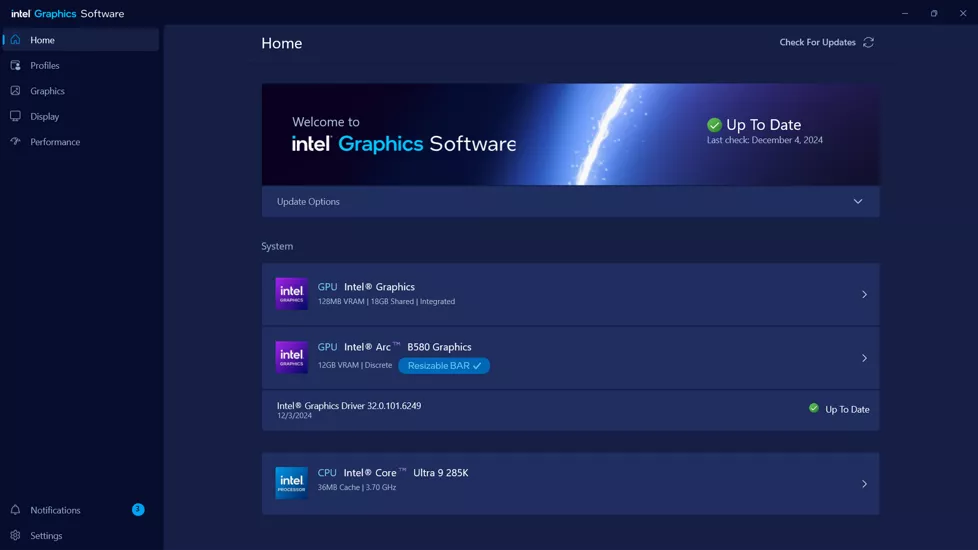
Keeping your Intel Arc GPU properly tuned ensures CONTROL Ultimate Edition delivers consistent, stutter-free performance.
This guide will help you perform a clean driver reinstall and factory reset, removing any corrupted or outdated driver components that may affect graphics quality or system stability.
Before You Begin
Back up any custom display or tuning profiles in Intel® Graphics Command Center.
Close all active apps, overlays, and game launchers.
Ensure you have a stable internet connection for downloads.
(Optional) For deeper cleanup, you can boot into Safe Mode using the same process described in the NVIDIA clean install guide.
A. Clean Driver Reinstall
1. Uninstall Existing Intel Drivers
Before installing a new driver, remove existing Intel graphics drivers to avoid conflicts.
You can do this via:
Control Panel → Programs and Features → Intel Graphics Driver → Uninstall
Or by using Device Manager → Display Adapters → Intel® Graphics → Uninstall device
2. Download the Latest Intel Graphics Driver
Visit the official Intel Graphics Drivers & Software page.
Select your GPU model (for example, Intel Arc A750, A770, or integrated GPU) and your operating system.
Download the most recent driver package.
3. Install Using Clean-Install Best Practices
Run the downloaded installer.
Follow Intel’s built-in Clean Install process (when prompted, select the option to remove previous drivers).
Once installation is complete, reboot your PC.
B. Factory Reset
1. Open Intel® Graphics Software
Press the Windows key and search for Intel® Graphics Command Center or open it from the system tray.
2. Restore Default Settings
Inside the Intel Graphics Command Center, press Alt + I.
Confirm the prompt to restore factory defaults for all graphics settings.
This resets display, color, and 3D configurations to Intel’s recommended defaults.
Post-Install Validation
Test In-Game: Launch CONTROL Ultimate Edition and play through an action-heavy sequence (for example, combat in the Research Sector or the Ashtray Maze).
Reapply Custom Settings: Reconfigure your preferred power, scaling, and color profiles if needed.
Monitor Performance: Keep an eye on GPU temperatures and frame rate stability using Intel Arc Control.
Contact Player Support
If you have questions or continue to encounter problems, and the issue persists, you can contact our support team for technical assistance.
- Open the Remedy Help Center. Go to remedy.helpshift.com and click the chat bubble in the lower‑right corner to start a ticket.
- Describe your issue. Select Bug Reports, Game Froze/Crash, or the most relevant option, and answer the bot’s questions. Be sure to include your email address, platform (Steam, PlayStation, Xbox, Switch, etc.), User ID, screenshot/video, and a clear description of what went wrong.
- Provide additional details. Player Support may ask you for additional files or info that may help with your issue, such as Error Code/Message, DxDiag, or MSInfo.
For comprehensive bug‑reporting instructions, refer to How to Report Bugs & Crashes - CONTROL Ultimate Edition in our Remedy Technical Support and Help Center.