
CONTROL Ultimate Edition stores your progress in a save‑data folder inside your user Library. Backing up this folder lets you preserve your progress when uninstalling the game or moving to a new Mac. This guide explains how to locate the Mac App Store version’s save files, copy them to a safe location, and restore them later.
Troubleshooting Steps
Quit CONTROL Ultimate Edition – Ensure the game is closed before manipulating save files.
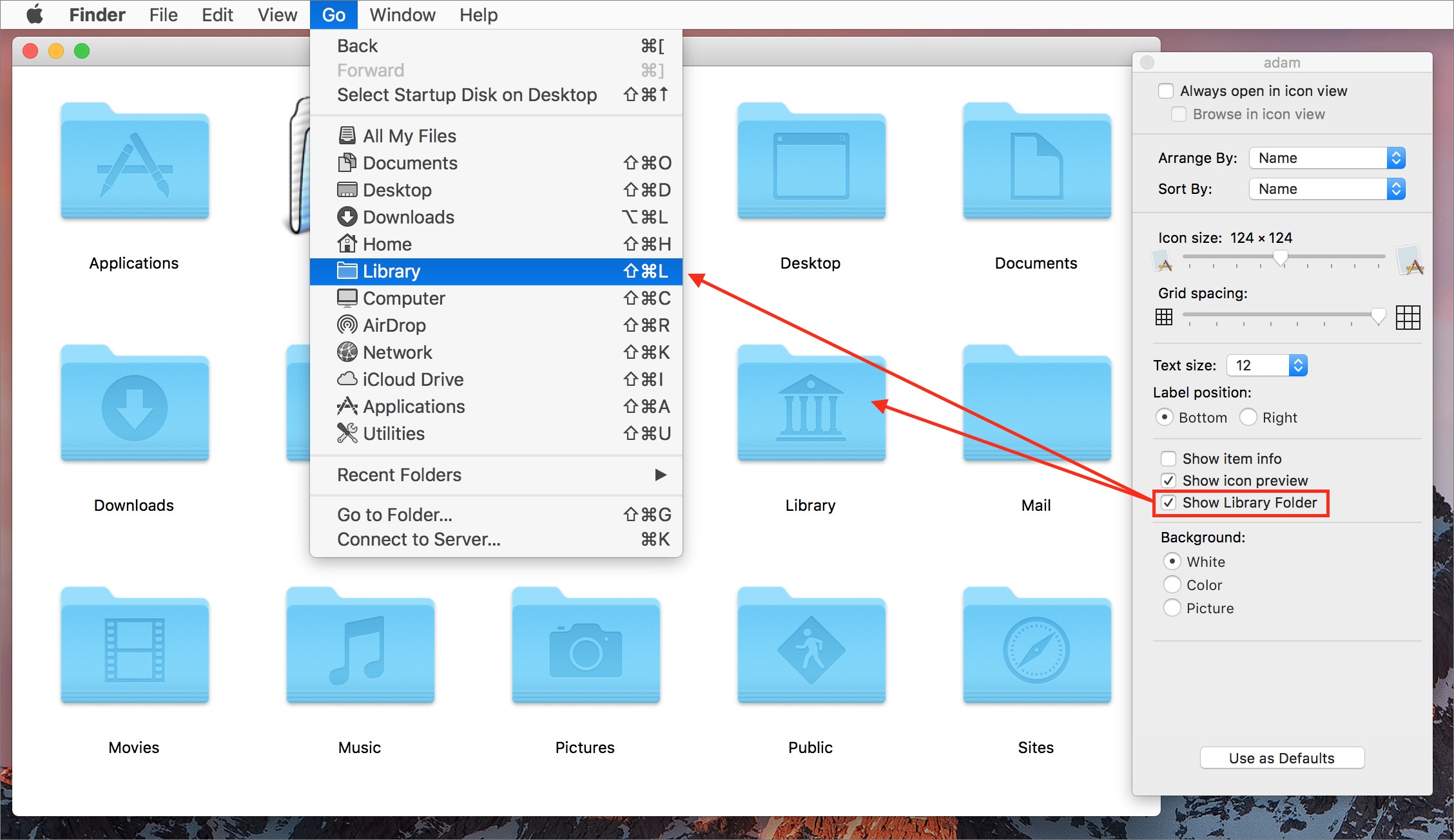
Open your hidden Library folder – In Finder, click Go in the menu bar. Press and hold the Option key to reveal Library, then select it. This opens the hidden
~/Libraryfolder.Navigate to the game’s container – Open the Containers folder. Look for a folder whose name starts with com.remedy or resembles com.control (for example,
com.remedy.control.appstore). This folder contains the sandboxed data for the game.Find the save‑data folder – Inside the game’s container, navigate to Data > Library > Application Support. Look for a folder named after the game or its publisher. Within this folder, there should be a SaveGames or similar folder containing your progress files.
Back up your saves – Copy the entire save‑data folder to an external drive or cloud‑storage location. Keep this backup safe; it contains your progress and settings.
Restore your saves – After reinstalling the game, repeat steps 2–4 to locate the save‑data directory in the fresh installation. Replace the existing save folder with your backup, or copy your backed‑up files into it. Launch CONTROL Ultimate Edition to verify that your progress has been restored.
Important Notes
Use Finder’s “Go to Folder” for quick access: In Finder, select Go > Go to Folder…, type
~/Library/Containersand press Return. This takes you directly to the Containers directory.Sandboxed path: Mac App Store apps store data in sandboxed containers located in
~/Library/Containers. Do not modify other apps’ containers, as this could cause corruption.
Additional Tips
Make regular backups: Copy your save data after major milestones to avoid losing progress due to corruption or reinstalling.
Cloud storage: Using iCloud Drive or another cloud‑sync service provides off‑site protection. Always verify the backup before deleting local files.
Troubleshooting: If you can’t find the save folder, start CONTROL Ultimate Edition once to generate it, then repeat the steps above. Some games create the directory on first launch.
Contact Player Support
If you have questions or continue to encounter problems, and the issue persists, you can contact our support team for technical assistance.
- Open the Remedy Help Center. Go to remedy.helpshift.com and click the chat bubble in the lower‑right corner to start a ticket.
- Describe your issue. Select Bug Reports, Game Froze/Crash, or the most relevant option, and answer the bot’s questions. Be sure to include your email address, platform (Steam, PlayStation, Xbox, Switch, etc.), User ID, screenshot/video, and a clear description of what went wrong.
- Provide additional details. Player Support may ask you for additional files or info that may help with your issue, such as Error Code/Message, DxDiag, or MSInfo.
For comprehensive bug‑reporting instructions, refer to How to Report Bugs & Crashes - CONTROL Ultimate Edition in our Remedy Technical Support and Help Center.