
Welcome to voice chat, Firebreakers. Starting this November, you can join voice chat in lobbies or parties, manage your voice settings, mute other players instantly, and report abusive behavior directly from the Socials or Results screens. This feature is cross-platform, so you can coordinate with friends across systems.
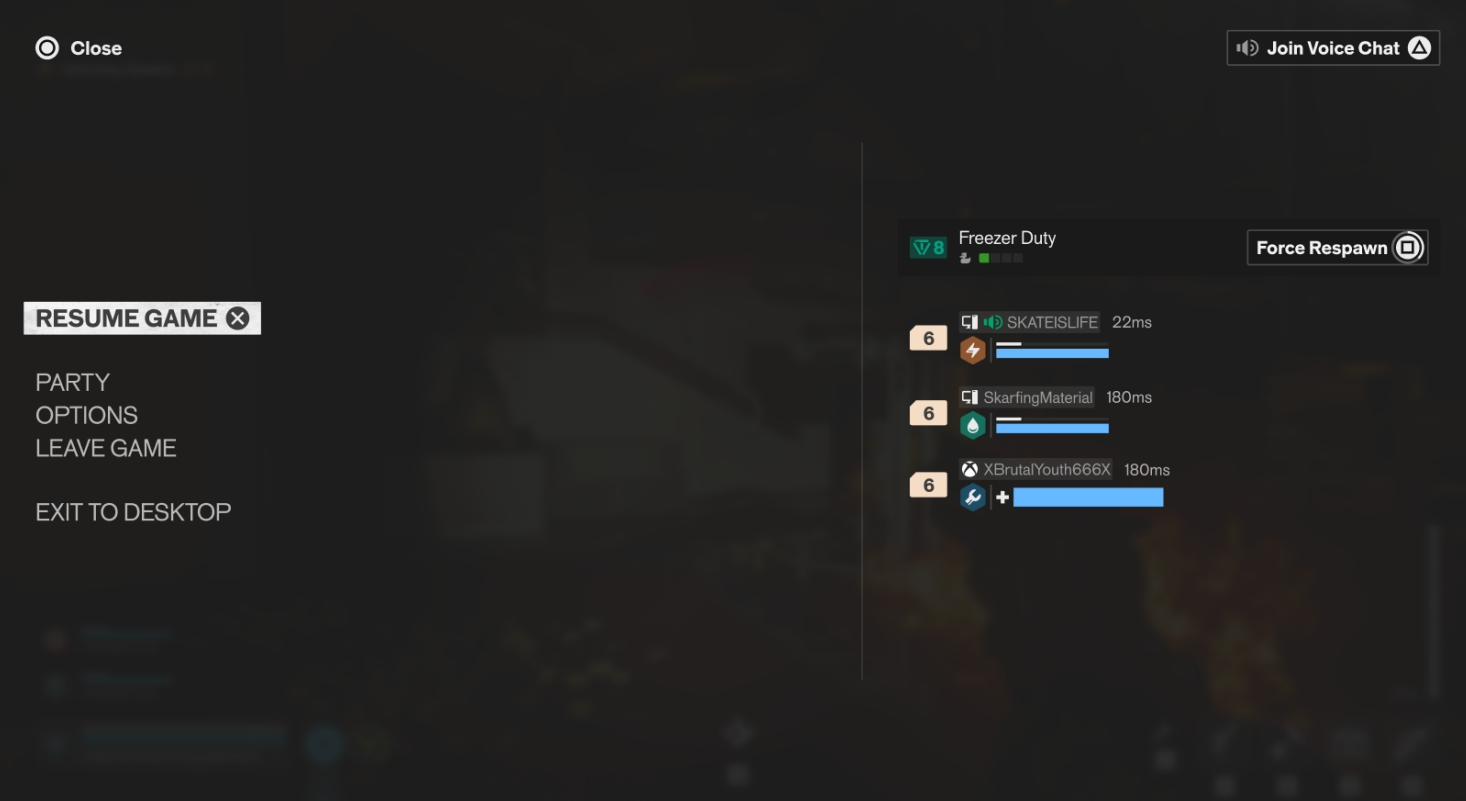
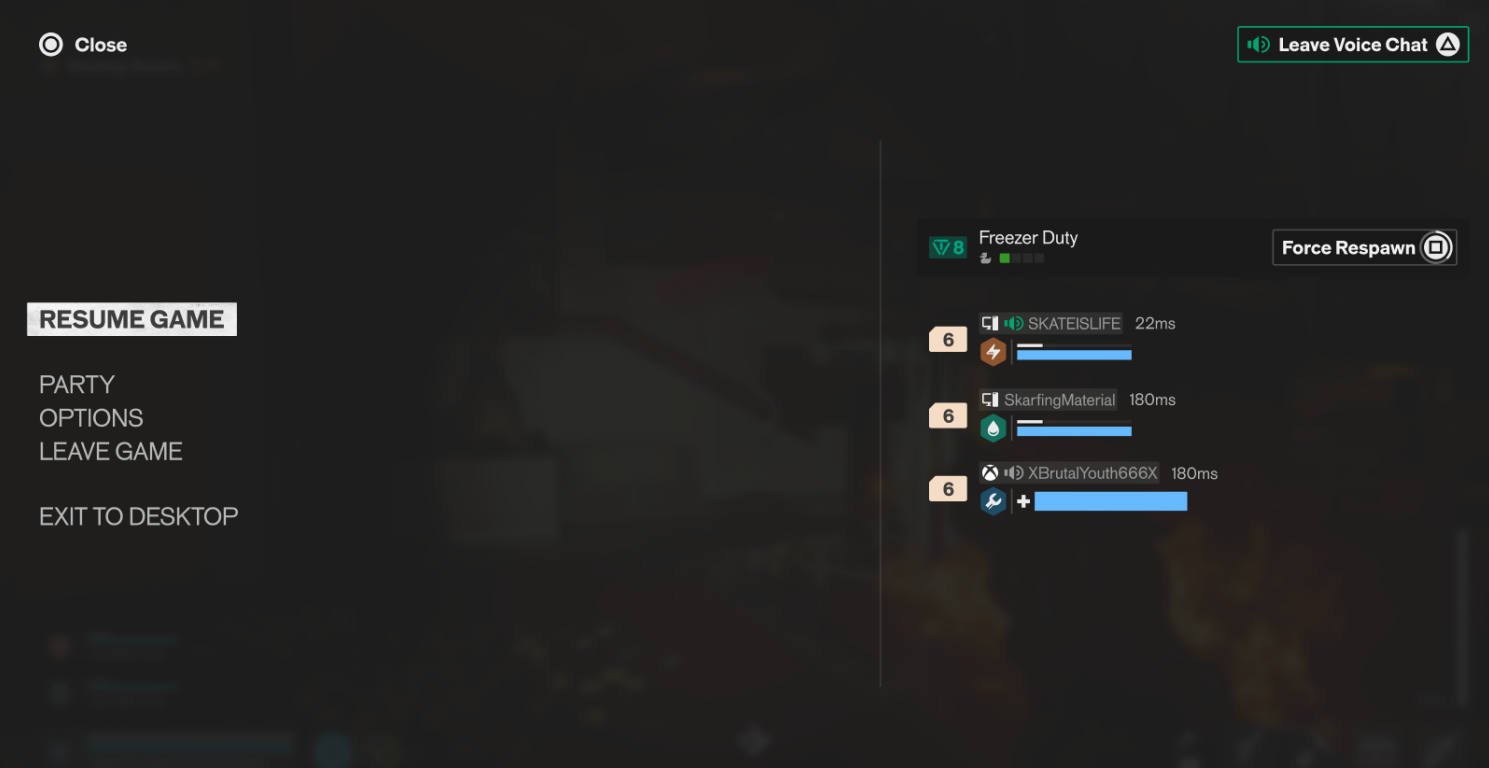
Quick Start: Joining and Leaving Voice Chat
Voice Chat is cross-platform and available in all multiplayer lobbies and games:
- Open Socials: Access the Socials menu from the Main Menu or the in-game Pause Menu.
- Join/Leave: In the lobby or party panel, select Join Voice Chat or Leave Voice Chat.
Pro Tip: You can control whether you automatically join voice chat upon entering a lobby by adjusting the Auto Join Voice Chat setting in your Audio Settings.
Voice Chat Settings
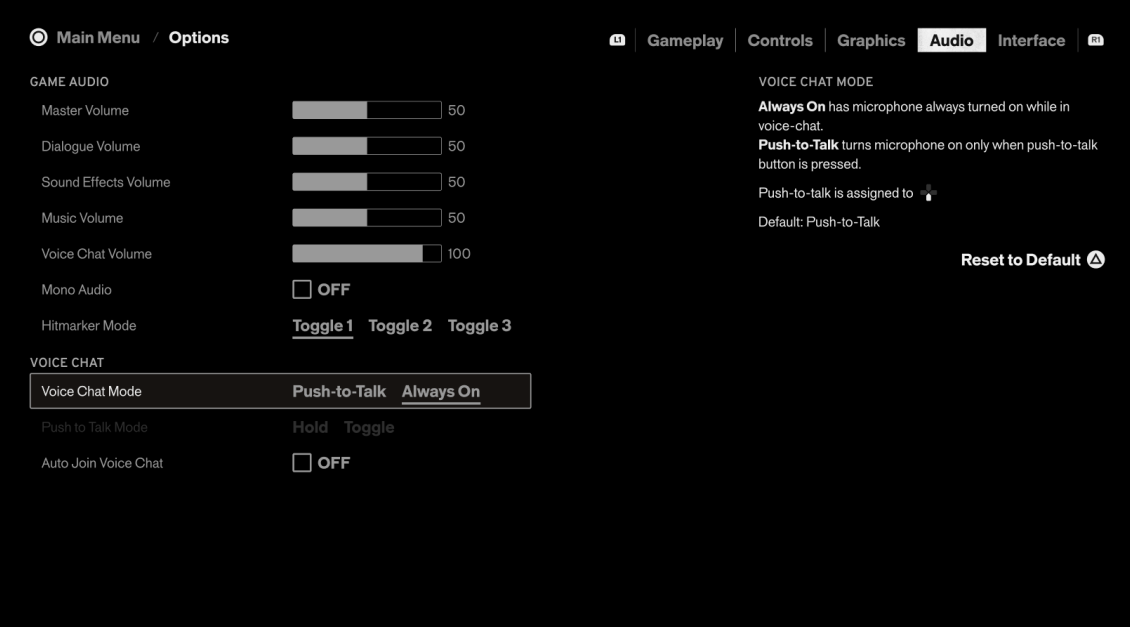
All voice chat settings are located in the Audio tab of the Options menu.
Setting | Function | Default Setting |
Voice Chat Mode | Toggles between Push-to-Talk (mic is only active when a button is pressed) and Always On (mic is always active). | PC: Push-to-Talk Consoles: Always On |
Push-to-Talk | Controls the activation of your mic when using Push-to-Talk mode. You can choose between Hold (mic is active only while the key is held) or Toggle (press once to activate, press again to deactivate). | Hold |
Voice Chat Volume | Controls the volume of other players' voices. This is a single channel and is separate from other game audio. | 100 (Max 120) |
Auto Join Voice Chat | Automatically joins the voice channel when you enter a lobby or match. | Off |
Muting and Reporting Players
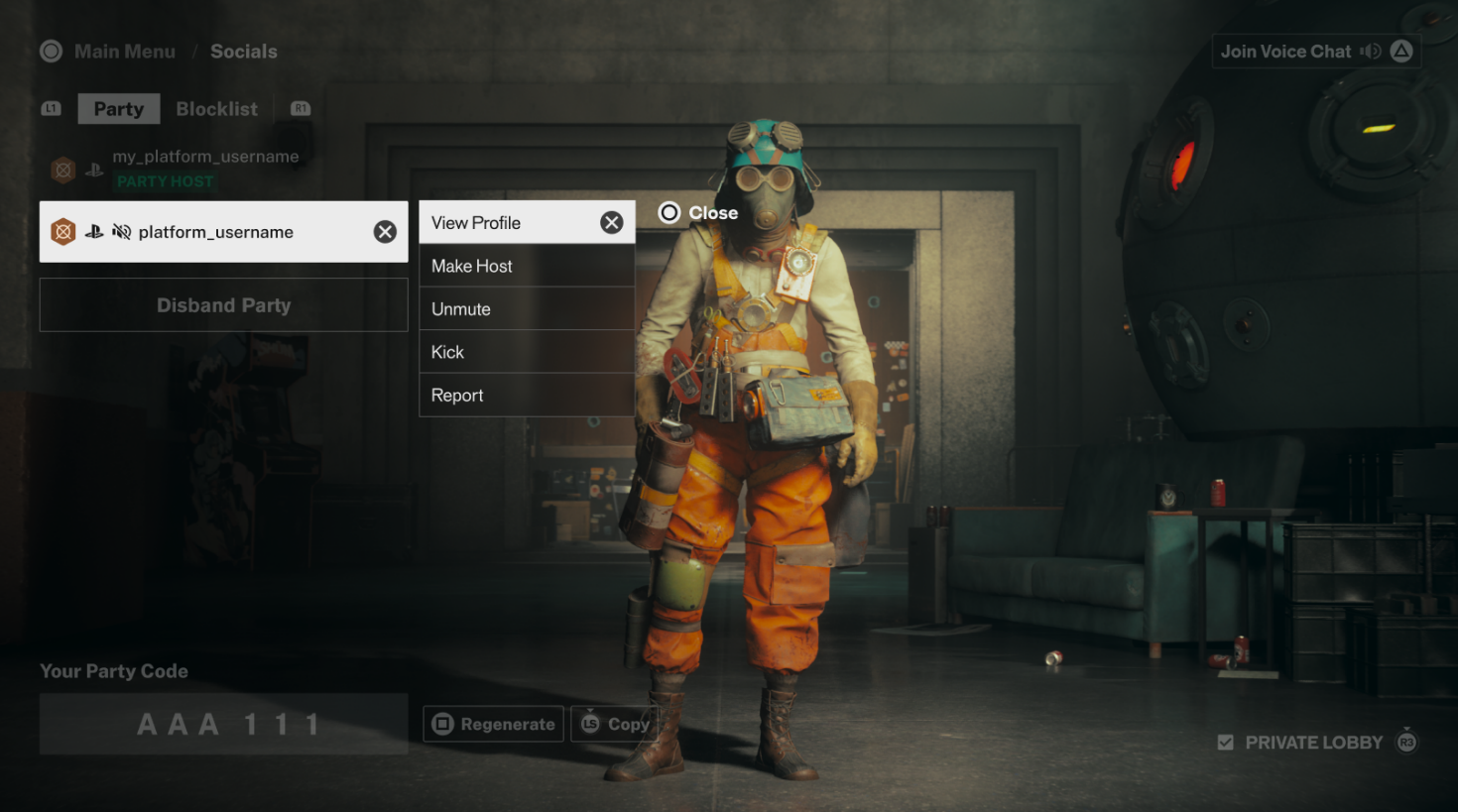
Player safety and a positive environment are our top priorities. You can easily mute or report players from the Socials screen.
To Mute a Player
Muting a player silences their voice chat specifically for you:
- Open Socials: Access the Socials menu from the Main Menu or the in-game Pause Menu.
- Select Player: Locate the player in your party list.
- Mute: Select the player and choose the Mute option.
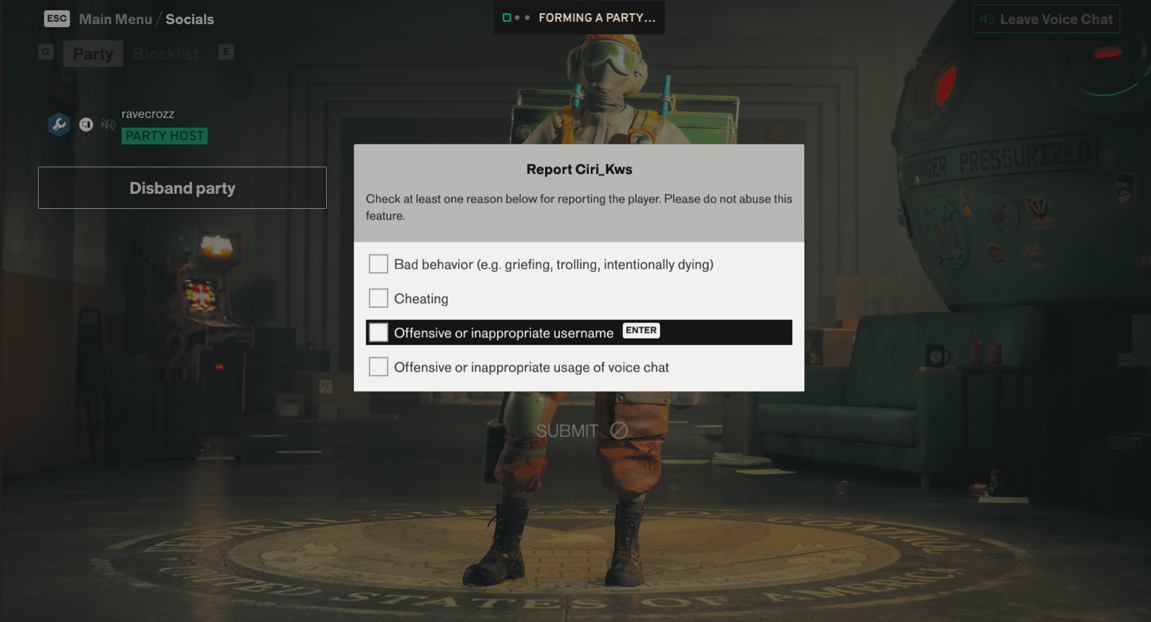
To Report a Player
You can report a player for inappropriate behavior, including voice chat abuse, directly from the game:
- Open Socials or Results Screen: You can initiate a report from the Socials menu during a match or from the Results screen after a match.
- Select Player: Select the offending player's name.
- Report Player: Choose the Report Player option.
- Select Violation: Use the combined report view to select the specific violation type (e.g., Harassment, Hate Speech, Threats).
- Submit Report: Complete the report form with a brief description of the incident and submit. Evidence significantly helps our moderation team respond more quickly. All relevant voice data is automatically included to help our moderation team review your report efficiently.
Privacy Note: Any evidence you attach (clips, screenshots) is used solely for moderation and enforcement purposes. Please do not include any private or personal details in your report.
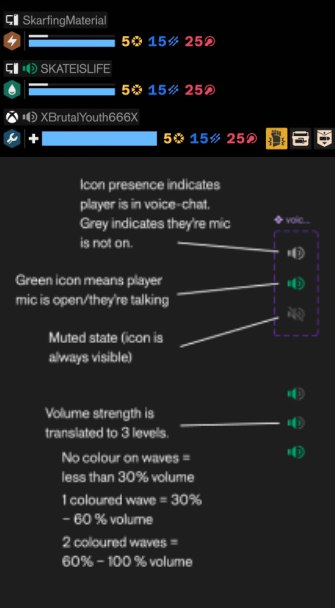
Who's-Talking Indicator
A visual indicator appears on your HUD and in menus to show who is currently speaking. This indicator has three states to show the microphone's volume level.
Troubleshooting Common Issues
Issue | Recommended Fix |
I can't hear anyone / they can't hear me. | 1. Confirm you have selected Join Voice Chat in the Socials menu. 2. Check your Voice Chat Volume setting in Audio Options. 3. If using Push-to-Talk, ensure you are holding or toggling the correct key/button. |
Push-to-Talk is not working on my console. | Due to platform binding limitations, console players may default to Always On. Check your Audio Settings to see if you can force Push-to-Talk. |
I was blocked/banned from using Voice Chat. | If a player is found to have violated our Code of Conduct (e.g., due to reports of abuse), they may be soft-blocked (mic disabled) or fully blocked from joining voice chat. Enforcement is review-based and is not always immediate. |
Customer Support
If you have followed all the steps above and are still experiencing issues, please contact our support team. To help us investigate and escalate your issue quickly, please include the following in your ticket:
- The User ID and in-game name of the player you are reporting
- The approximate time and date the incident occurred.
- Optional: If available, a short video of the incident.