
If you want to start CONTROL Ultimate Edition fresh on iPhone or iPad, the cleanest approach is to remove the game’s backed-up data from iCloud first, then delete the app from the device and reinstall it. Apple lets you view the apps included in a device backup and turn off individual apps so their existing backup data is removed from iCloud.
If you want a deeper reset, you can also delete the entire device backup from iCloud. Apple notes that doing so turns off iCloud Backup for that device.
Each step below escalates in scope and impact. If a lighter step does not fully reset the game, continue to the next one.
Step 1: Verify the Correct Apple ID
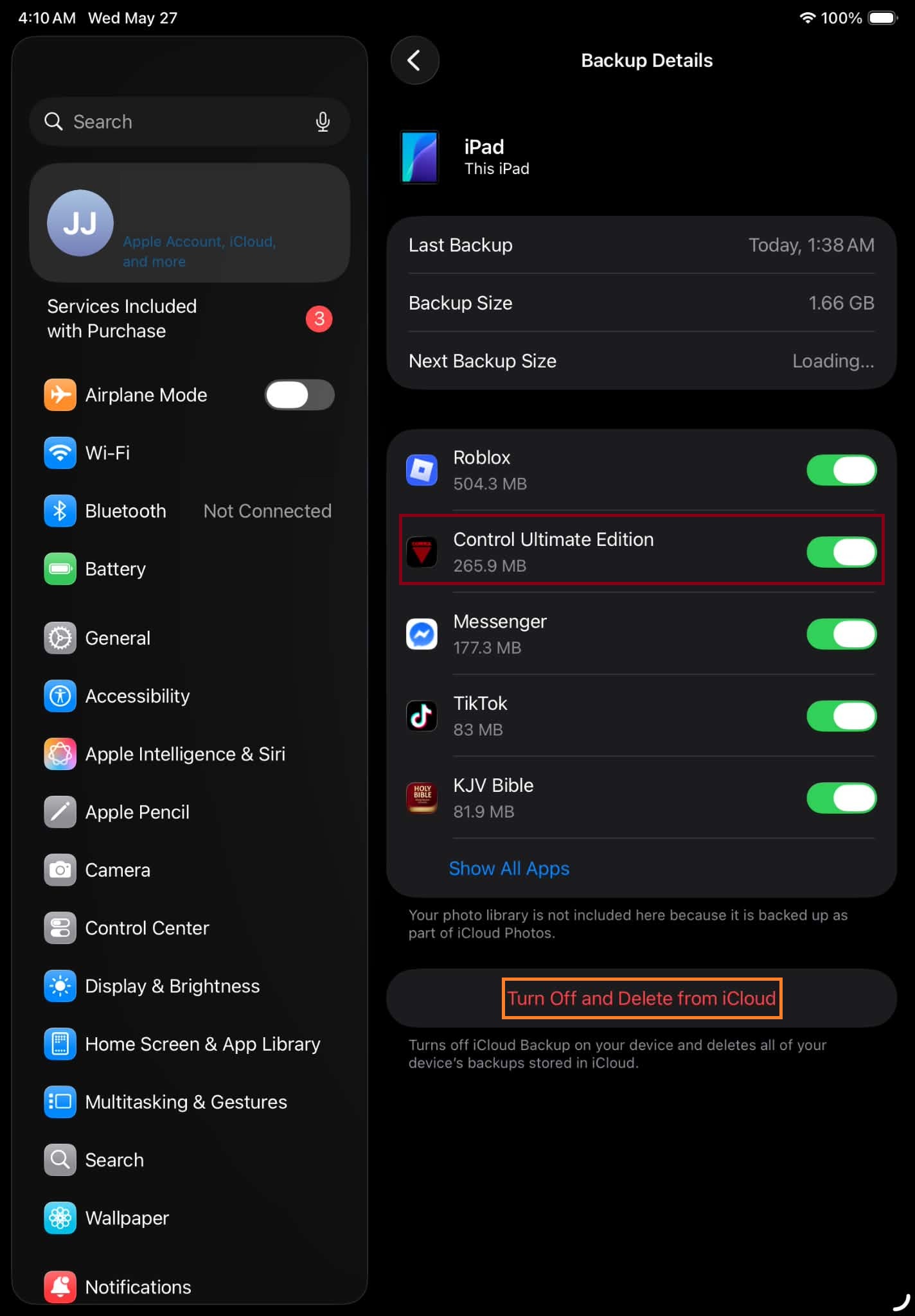
Start by opening the iCloud backup area for your device. Apple’s current path is Settings > your name > iCloud > Storage or Manage Account Storage > Backups > your device, and that screen shows the last backup, the next backup size, and the apps included in the backup.
To get there:
- Open Settings
- Tap your name
- Tap iCloud
- Tap Storage or Manage Account Storage
- Tap Backups
- Tap the device you are using
Note: If you are on the screen shown in your screenshot, you are already in the right place.
Step 2: Remove CONTROL Ultimate Edition from iCloud Backup
If you want to clear CONTROL’s backed-up data from iCloud, turn off the app in the backup details list. When you turn off an app you no longer want to back up, its existing backup data is also deleted from iCloud.
To remove CONTROL Ultimate Edition from the backup:
- In Backups, tap your device
- Find CONTROL Ultimate Edition in the app list
- Turn it off
- Confirm the change
This is the best step if you want to reset CONTROL without wiping your entire device backup.
Step 3: Delete the Entire Device Backup From iCloud (Optional)
If you want a full backup reset for the device itself, Apple also allows you to delete the whole iCloud backup. Tap the device name, then choose Turn Off and Delete from iCloud. Apple also notes that deleting a backup turns off iCloud Backup for that device.
Use this only if you want to remove the full device backup, not just CONTROL Ultimate Edition.
To do this:
- Open Settings
- Tap your name
- Tap iCloud
- Tap Storage or Manage Account Storage
- Tap Backups
- Tap the device name
- Tap Turn Off and Delete from iCloud
- Confirm the deletion
Step 4: Delete CONTROL Ultimate Edition From the Device
After removing the backed-up data, delete the app from the iPhone or iPad so the old local installation does not remain on the device. Apple’s current iPhone and iPad guidance says to touch and hold the app, tap Delete App, then confirm deletion.
To delete the game:
- Touch and hold CONTROL Ultimate Edition
- Tap Remove App or Delete App
- Tap Delete App
- Confirm
Step 5: Reinstall the Game
Once the app and its backed-up data have been removed, reinstall CONTROL Ultimate Edition from the App Store to start fresh. Apple notes that you can redownload apps you delete.
To reinstall:
- Open the App Store
- Search for CONTROL Ultimate Edition
- Download the game again
- Launch it and begin a new playthrough
Important Notes
- Turning off CONTROL Ultimate Edition in the backup list removes its existing backup data from iCloud.
- Deleting the entire device backup affects everything in that backup, not just CONTROL Ultimate Edition. This also turns off iCloud Backup for the device.
- If you only want to reset CONTROL, do not delete the whole device backup unless that is your goal.
- If the app has not been backed up yet, you may need to wait for the backup list to finish loading before the app appears. The backup screen shows details such as the last backup, the next backup size, and the apps included.
Pro Tips
- If you want the cleanest reset, remove CONTROL from the backup list first, then delete the app, then reinstall it.
- Keep a stable Wi-Fi connection while managing iCloud backups and reinstalling the game.
- If you only want to stop future backup data for CONTROL, turning off the app in iCloud Backup is the lighter option. That action also deletes the app’s existing backup data from iCloud.
- If you are unsure whether to delete the whole device backup, do not use the device-level deletion option yet.
Contact Player Support
If you have questions or continue to encounter problems, and the issue persists, you can contact our support team for technical assistance.
- Open the Remedy Help Center. Go to remedy.helpshift.com and click the chat bubble in the lower‑right corner to start a ticket.
- Describe your issue. Select Bug Reports, Game Froze/Crash, or the most relevant option, and answer the bot’s questions. Be sure to include your email address, platform (Steam, PlayStation, Xbox, Switch, etc.), User ID, screenshot/video, and a clear description of what went wrong.
- Provide additional details. Player Support may ask you for additional files or info that may help with your issue, such as Error Code/Message, DxDiag, or MSInfo.
For comprehensive bug‑reporting instructions, refer to How to Report Bugs & Crashes - CONTROL Ultimate Edition in our Remedy Technical Support and Help Center.